How to Separate a Subject from the Background using Masking
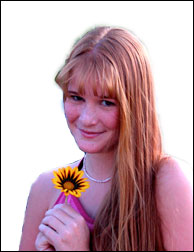
Before Changes
After Changes
This tutorial is to help you learn how to separate a subject or object from it’s surroundings in order to create more serious effects without including the isolated subject. Ok, once you have your picture open in photoshop:
1. Click on the Edit in Quick Mask Mode button.
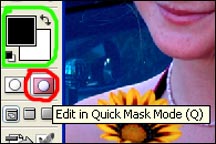
2. Make sure the colors that you are using are black and white.
3. Then click on the Brush tool and make sure you have a good size brush.
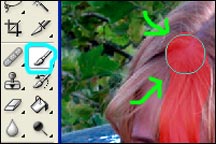
4. Then using the brush, make the whole subject red. (Don’t chose the color red though leave your colors on white and black. The quick mask tool uses that opaque color red as a default. Anywhere that is red will be included in the selection).
5. This what your subject should look like when your done “painting” it.
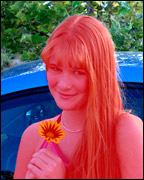
6. Then click on the Edit in Standard Mode button and you should see that it makes a selection. The problem is that it selected everything that wasn’t “painted” red. So here’s what you do if you want to get the subject selected:
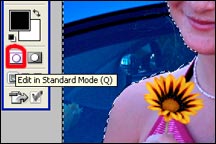
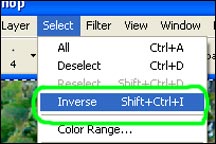
7. Go to the select menu and click on Inverse. (Select>Inverse). You should now have what you want selected, so in order to copy it to a layer:
8. Go to the Layer menu and select Layer via Copy. (Layer>Layer via Copy).
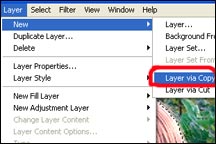
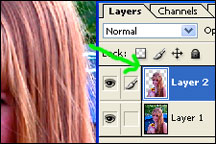
You should now have a new layer with just your subject in it. Now you can do whatever you want to the original picture (Layer 1) without affecting your subject. Or you can copy your subject into a completely different picture.
-source

How to Separate an Image from its Background

1 – The original image
 Select the Freeform Pen tool from the Toolbox (click and hold down on the pen tool if it's not immediately visible.)
2 - Creating a Path
Use the Freeform Pen to draw a rough outline around the object. (Make sure you have the "Paths" option at the top left of the screen selected.) Generally err on the side of cutting into the image rather than leaving a gap.Use Ctrl+Click to manipulate the points, and drag their "arms" around to change the curve. To insert a new point, just click on the line.
When you've finished, right-click the line, and click Make Selection. This turns your line into a selection.

3 - Removing the background
Cut out your object and paste it into a new layer. (Ctrl+C, then Ctrl+V) You can then replace your background layer with whatever you want.I've put in this magenta (opposite of green) background to show up any green bits that might still be stuck to our budgie.
Notice there are no jaggy edges, and there is no visible green outline.
-source
Best Photoshop Text Effects on the Web
For some unknown reason, each time we try a new graphics application, we feel the uncontrollable desire to apply the most cheesy effects to beautifully designed typefaces. These so called text effects or type effects are carefully hidden guilty pleasures that most designers enjoy to try, but would never dare to apply in real life work.
For those like me that love text effects and have the courage to admit it, here’s a thorough guide to the best 80 text effects available on the web.
To some these may be not the best tutorials on the web, but certainly they are some of the best around. I had to eliminate those that looked nice but had very little preview images. This guide includes 78 Photoshop tutorials and 2 impressive collections of Photoshop Actions, plus 3 books on the subject.
If you have created a cool text effect and you believe it should be mentioned in this list, just leave a comment with the link to your tutorial or resource in the comments section.
For those like me that love text effects and have the courage to admit it, here’s a thorough guide to the best 80 text effects available on the web.
To some these may be not the best tutorials on the web, but certainly they are some of the best around. I had to eliminate those that looked nice but had very little preview images. This guide includes 78 Photoshop tutorials and 2 impressive collections of Photoshop Actions, plus 3 books on the subject.
If you have created a cool text effect and you believe it should be mentioned in this list, just leave a comment with the link to your tutorial or resource in the comments section.
Text Effects Tutorials for Photoshop
Click on each image to read the tutorials
 |  |  |
 |  |  |
 |  |  |
 |  |  |
 |  |  |
 |  |  |
 |  |  |
 |  |  |
 |  |  |
 |  |  |
 |  |  |
 |  |  |
 |  |  |
 |  |  |
 |  |  |
 |  |  |
 |  |  |
 |  |  |
 |  |  |
 |  |  |
 |  |  |
 |  |  |
 |  |  |
 |  |  |
 |  |  |
 |  |  |
 |  |  |
-source
another useful website with lots of photoshop text effects - http://www.designvitality.com
Subscribe to:
Posts (Atom)